Canva is one of the easiest DIY tools for assembling a wedding crest and laying out matching invitations, menus, and welcome signs in the same workspace. This step-by-step tutorial walks through canvas dimensions, the best element search keywords, serif font pairings, transparent PNG export, and how to pair Canva’s exact typography with custom AI-illustrated wreaths.
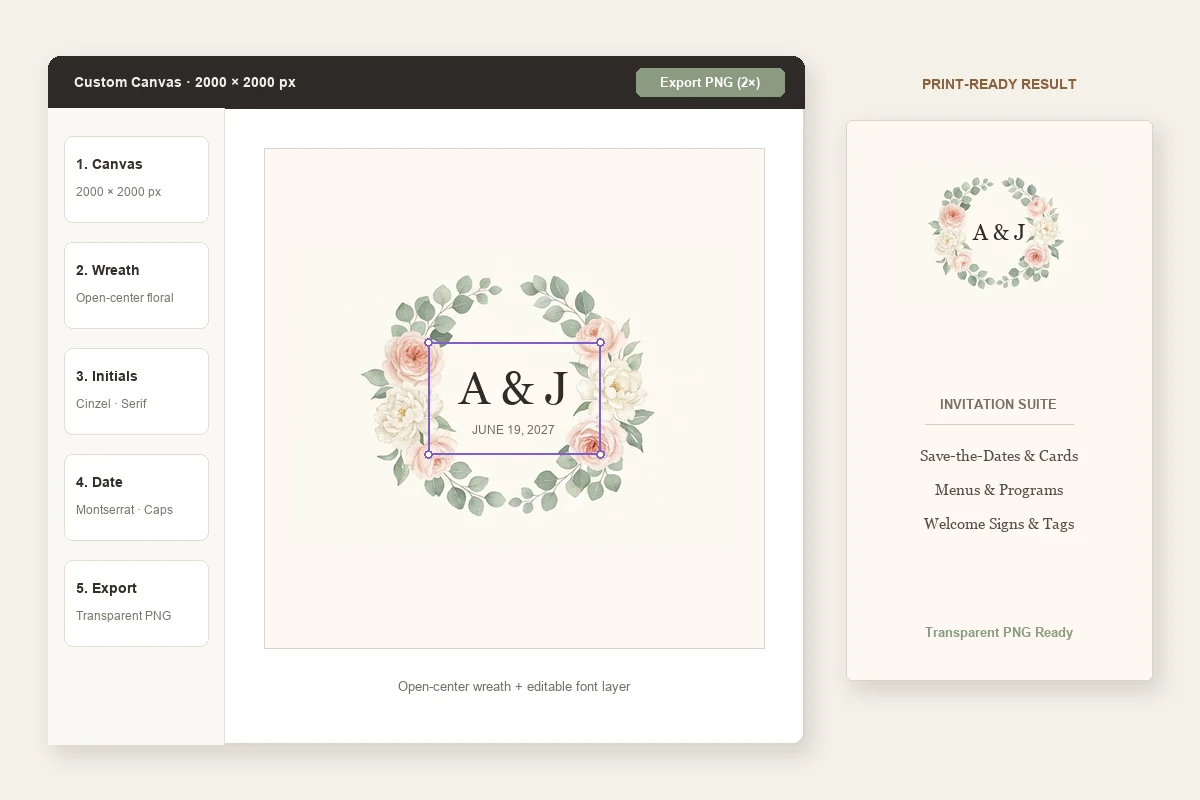
Step 1: Set up a high-resolution square canvas in Canva
Start with a dedicated square file for the crest itself rather than building it directly inside an invitation template. That way you can export one clean master graphic and reuse it consistently across every stationery piece.
Open Canva, choose Create a design → Custom size, and set the dimensions to 2000 × 2000 px (or 3000 × 3000 px if you plan to print large welcome signs). Designing large from the start prevents blurry edges when you later resize the crest onto invitations, menus, or signage.
Step 2: Build the frame and florals using Canva Elements
Open the Elements tab on the left sidebar and build from the outside in: place your structural frame first, center it using Canva’s purple alignment guides, and layer botanical accents sparingly around the sides.
Stick to graphics from the same visual family (for example, all fine line art or all soft watercolor) so stroke weights and textures match. Once the frame feels balanced, select all graphic layers and Group them so they stay aligned while you work on text.
- Frame keywords to search: “wedding crest frame”, “monogram wreath”, “vintage crest outline”, “botanical line art circle”, or “minimalist arch frame”.
- Floral keywords to search: “watercolor greenery element”, “line art florals single line”, “olive branch illustration”, or “garden rose watercolor”.
- Symmetry trick: Duplicate a floral branch, click Flip → Flip horizontal, and mirror it on the opposite side of the shield or oval for instant heraldic balance.
Step 3: Style your initials and wedding details with font pairings
Typography sets the formality of a Canva wedding crest. Add separate text boxes for your main initials and any secondary details (such as your wedding date or surname) so you can scale and nudge each piece independently.
Use Canva’s Spacing toolbar to open up letter-spacing slightly on uppercase dates or surnames—a little breathing room makes small printed text look far more refined than tight default tracking.
- Classic & formal initials: Cinzel, Playfair Display, Bodoni FLF, or Cormorant Garamond.
- Romantic calligraphy accents: Script fonts like Amsterdam or Lovers Quarrel—best used for just one or two letters so the center remains legible.
- Clean supporting text (date or location): Light uppercase sans-serifs like Montserrat or Jost, or small-caps Cormorant Garamond placed neatly beneath the wreath.
Step 4: Keep colors print-smart and export a transparent PNG
Before exporting, test your crest in one solid color—such as deep navy, charcoal, forest green, or muted antique gold. A monochrome version is far easier to place onto colored envelopes, cocktail napkins, favor tags, and custom stamps without clashing.
To download a master file you can drop onto any invitation background without an awkward white box, click Share → Download → File type: PNG, check Transparent background, and increase the Size slider before downloading. Note that Canva’s built-in Transparent background option requires Canva Pro (or a trial); on a free plan, export on a plain white background and either match your invitation paper color or clean the background carefully before placing it over darker textures.
Bonus workflow: Pair an original AI crest frame with Canva typography
The biggest limitation of building a wedding crest purely from Canva Elements is that popular stock wreaths appear on thousands of other weddings—and it is hard to find matching illustrations for personal details like your specific bouquet flowers, ceremony arch, or pet.
A reliable hybrid workflow gets the best of both worlds: generate an original open-center watercolor or engraved wedding crest in our Wedding Crest Generator (simply leave the initials field empty in the wedding brief), upload that custom artwork into Canva, and place your exact editable Canva fonts right in the center. You get one-of-a-kind illustration plus pixel-sharp, spell-checked typography.
Step 5: Place and print your wedding crest across stationery
Upload your exported PNG back into Canva and drop it onto your Wedding Invitation, RSVP Card, Menu, Program, and Welcome Sign layouts. Keep the crest’s relative margin generous so nothing gets clipped during trimming.
Always download a PDF Print proof (with crop marks and bleed if your printer requests them) and run one physical test print before ordering in bulk. If you plan to order custom brass wax seals, embossers, or gold foil stamping from a specialty vendor, confirm early whether they accept a high-resolution monochrome PNG or require a vectorized SVG/PDF.
Questions & answers
Can I make a wedding crest on Canva for free?
Yes. You can design a complete wedding crest using Canva’s free frames, botanical elements, and fonts. The main limitation on the free tier is that exporting a PNG with a transparent background and resizing above 1× are Canva Pro features.
What size canvas should I use for a wedding crest in Canva?
Use a high-resolution square canvas such as 2000 × 2000 px or 3000 × 3000 px. Starting large keeps floral outlines and serif lettering sharp when placed onto invitations, menus, and larger welcome signs.
What are the best fonts for a wedding crest in Canva?
Classic serifs such as Cinzel, Playfair Display, Bodoni, and Cormorant Garamond work cleanly for couple initials, while spaced-out uppercase fonts like Montserrat or Jost keep dates and locations readable beneath the frame.
Can I upload an AI-generated wedding crest into Canva to add my own text?
Yes. Generating an open-center floral crest and uploading it into Canva lets you combine custom watercolor or engraved illustration with exact, editable Canva fonts—and reuse the same file across your entire invitation suite.
Continue learning
- How to make a wedding crest step by step
- Explore wedding crest ideas and floral styles
- What is a wedding crest? Meaning and parts
Create a custom crest for Canva — Generate an original open-center wedding crest wreath, then layer editable fonts in Canva.
Sources & further reading
The examples and illustrations in this guide are original educational designs. They do not document grants of arms or establish anyone’s ancestry.